 Shukushaku
PHOTO → MEASURED PRINT
A drawing, a pattern, a paper template. Bring it from your camera back to paper at its original size.
A physical reference.
A perspective-corrected image.
A PDF with real dimensions.
Ready to scan?
Already have markers? Use them. Need a set? The same print pack includes the QR, four ArUco tiles and camera-calibration board.
Match your printer's paper. Print at Actual size / 100% and check the 45 mm black squares. Printing or size problems?
Choose ArUco, QR or a known document size in Scan settings. Photos stay on your device by default. Optional camera calibration →

Start with a well-framed photo
Place the calibration marker beside your drawing,
on the same flat surface. Keep both fully in view.
Camera access requires your permission. JPG & PNG recommended.
Hold the full document and reference markers steady for about 2 seconds. ArUco auto capture needs at least two tiles. Known-size mode needs only the document. You can always take the photo manually. Green outlines mean tiles detected; orange marks the document. The countdown below confirms readiness. A chime announces capture when media volume is on.
Green = tile detected · Orange = document outline
Looking for a Shukushaku marker…
Live corrected preview
On-device framing preview. Final calibration uses the captured photo, not this reduced-resolution view.
Reading your marker…
Drag the orange handles. For keyboard adjustment, focus the photo and use arrow keys (Shift for larger steps). Corners must follow the paper boundary, not the artwork.
A LITTLE GEOMETRY. A LOT LESS GUESSWORK.
From your desk
to your printer.
- 01
Place the reference
Place the tiles around a flat drawing, with every marker face level with it. Keep the full black squares and white borders visible.
- 02
Capture & straighten
The known marker sizes establish scale. Your browser checks the tiles together and corrects perspective across their shared plane.
- 03
Crop & print at 100%
Select the drawing and export a PDF with physical page dimensions. Tile larger patterns onto ordinary paper.
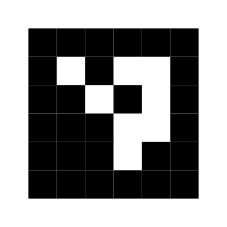 4 ArUco tiles + 1 dual-use QR
ONE PACK. TWO WAYS TO MAKE IT.
Your complete scanning kit.
Start with paper, or print a reusable PLA set. Four unique ArUco tiles establish scale and perspective; the QR opens the app and can set scale for simple scans.
Match the paper loaded in your printer. Print at Actual size / 100%; disable Fit to page.
Paper pack · three pages · Letter or A4
Quick-start instructions, the everyday set of four 60 mm tiles and one 60 mm dual-use QR, a separate 60 mm instruction card, and an optional camera-calibration board. Print single-sided, leaving the backs blank. Print only the pages you need at Actual size / 100% and check the ruler lines.
Reusable PLA set · slim storage case
Four 60 mm ArUco tiles and one 60 mm dual-use QR, each 0.8 mm thick. Stack them in the included tray with a lift-off lid: 66 × 66 × 5.8 mm closed. Use a small elastic band to retain the lid in transit. The kit includes STL models and printing instructions.
The case is a digitally checked prototype; physical fit and durability still need a test print. Its 0.3 mm clearance per side may need adjustment for your printer. Thin PLA tiles must remain flat.
Printing, placement & calibration
Use matte white and black PLA, 0.2 mm layers and a 0.4 mm nozzle. The white base is 0.6 mm; the black layer adds 0.2 mm. Combined models support a filament change; separate parts support multicolour printing.
Remove the tiles from their case before scanning. All black marker faces must be level with the drawing: raise the drawing by the measured tile height or recess the tiles. Measure each 45 mm black square and enter any difference in Scan settings.
Use two or more unique IDs, with all white borders visible. Numeric labels identify tiles only; any tile can go at any position or rotation. The plain QR has a 45 mm black symbol within its 60 mm tile and works as a single measuring reference. Use ArUco when the app flags small QR coverage, strong tilt or a document extending far beyond the QR. The calibration board is a paper print mounted flat and rigid; it corrects lens distortion, not curled paper.
Set up camera calibration →Printing or size problems?
First match Letter or A4 to your paper and turn off Fit to page. Measure the black square, not the 60 mm outer tile. These optional tools handle a print that is still slightly off.
Correct my next print
Measure the width and height of a 45 mm black square from the standard, uncorrected pack. Use the same printer, paper, app and print settings for the corrected PDF. Never use measurements from an already corrected PDF here.
Calculated on your device. Verify both dimensions after printing. This does not change scan settings. If you previously saved marker measurements, update or reset them before scanning newly printed markers.
Use the markers I already printed
Enter each black square's actual size. Check that its width and height match; visibly stretched rectangles should be reprinted. These values set physical scale, rather than changing the photo after export.
Otherwise these sizes last for this tab's session. For older SF60 markers, enter their measured symbol width directly in Scan settings. The sample always uses its original dimensions. Known-size mode uses your document dimensions instead.
REAL-WORLD TEST / DOODLE BUG PINBALL
From cabinet to paper.
At actual size.
A scaled template for the side of a Doodle Bug pinball machine—captured with a handheld phone and checked against the real cabinet.
A practical test, outside a studio.
Printed ArUco tiles were placed around the cabinet side to provide a physical scale reference. Holding the phone by hand, the tester had to balance steady framing with an awkward camera angle. Shukushaku corrected the perspective to produce a flattened image of the cabinet surface.
The result was exported as both one full-size PDF page and a set of Letter pages for an ordinary printer. The tester reported that the printed template matched the cabinet at the intended scale on the first attempt.
Printed to scale on the first attempt. — The tester’s report
Perspective correction helps with an angled view of a flat surface. Keep the markers in that same plane and check a known measurement on the print.
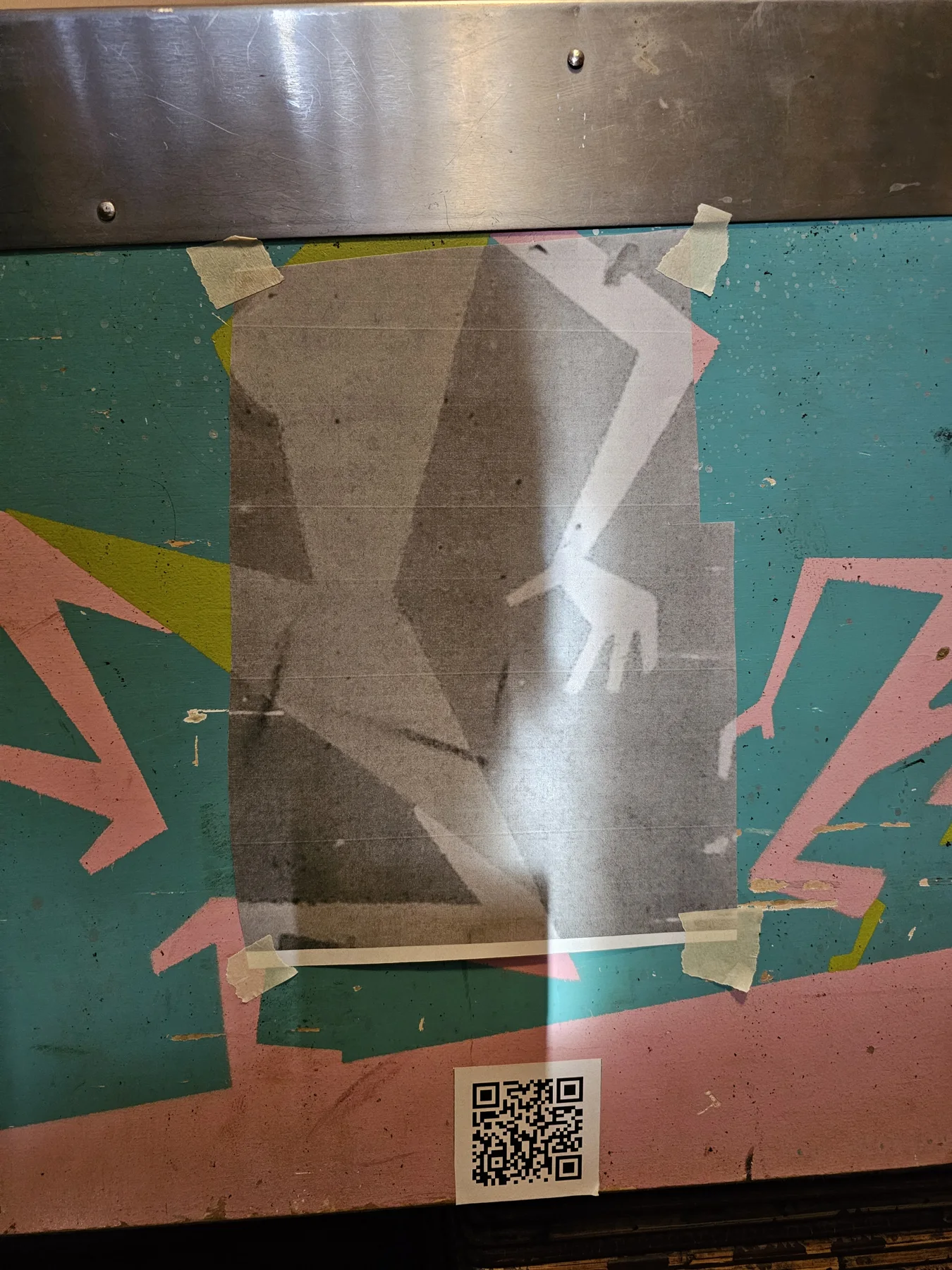
One continuous template
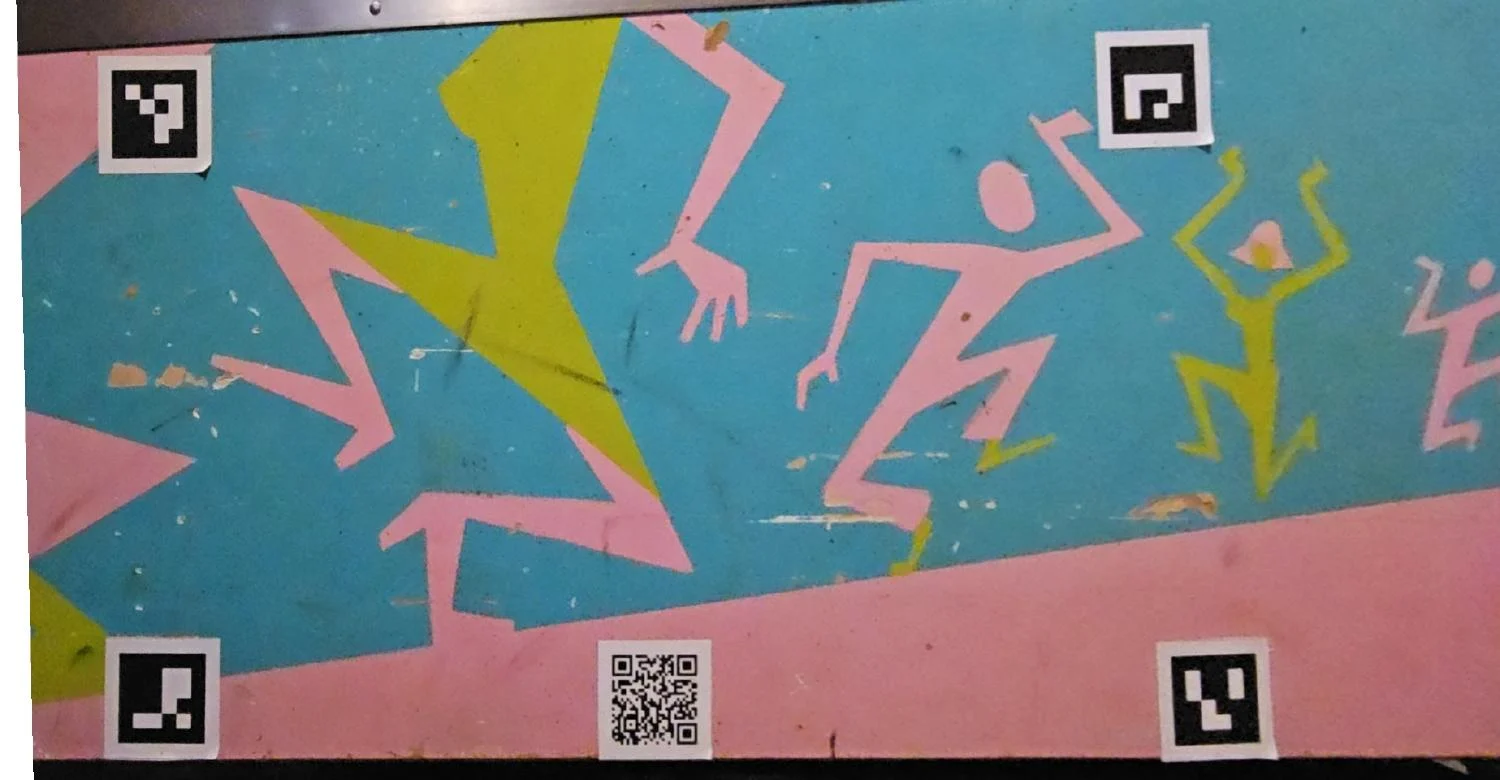
The same scan, ready to assemble
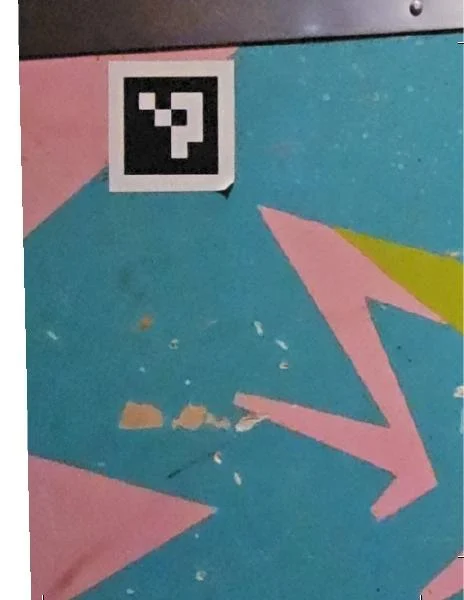
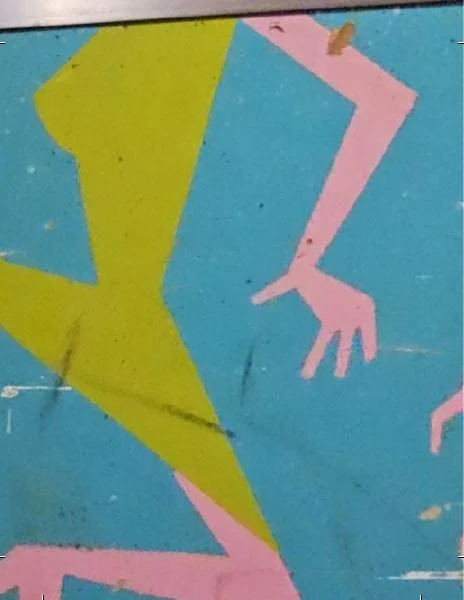
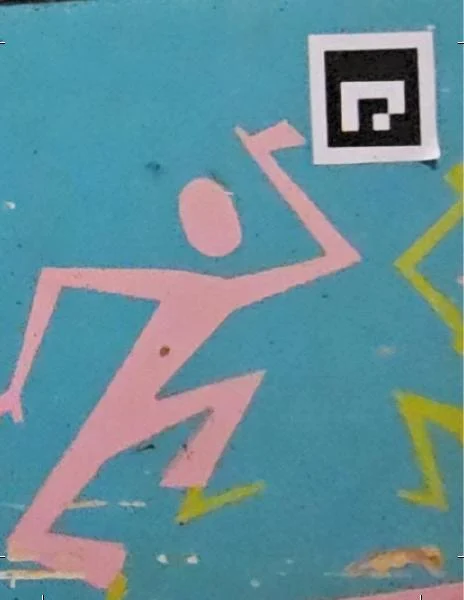
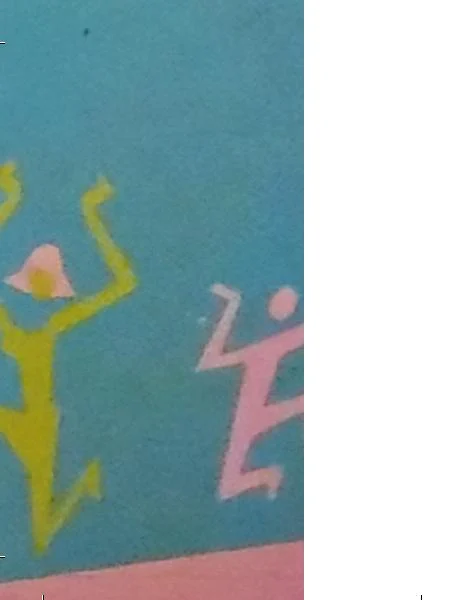
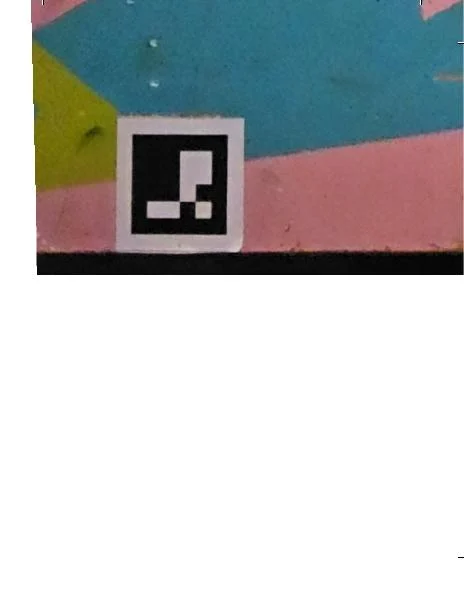
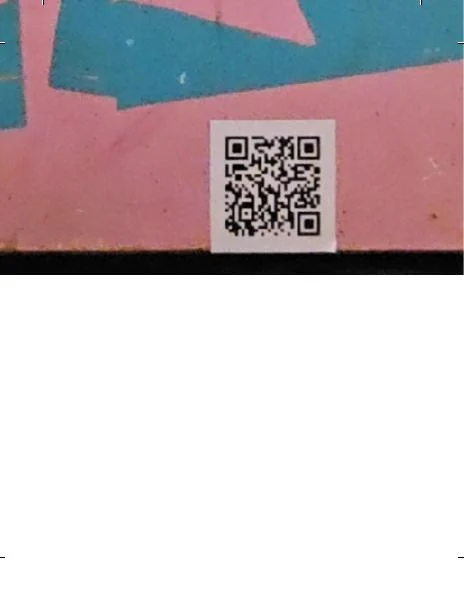
Images from a real user test. PDF pages are shown as image previews; screen size does not represent print size.